Build a product card with a 💻 emoji, “Add” and “Remove” buttons, quantity boundaries (0…stock), and dynamic total price.

Interactive UI. Controlling quantity within boundaries is a core cart behavior.
What To Do
- Add
quantitystate starting at 0. - Buttons: “Add” increases up to
stock, “Remove” decreases down to 0. - Total price =
unitPrice * quantity. Update it on each click.
Final View
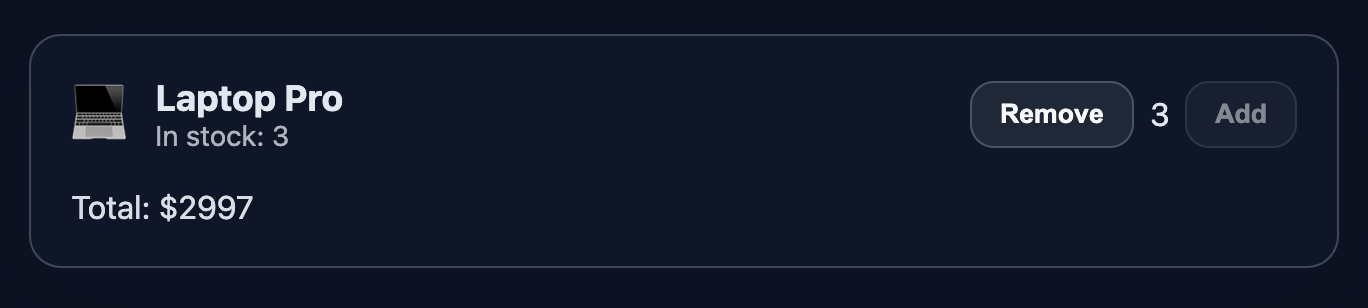
A product card with 💻 emoji, title, stock, controls, and total.
Final result should look like this:
💡 Hint
- State:
const [quantity, setQuantity] = useState(0). - Boundaries:
quantity > 0andquantity < stock. - Disable buttons at boundaries for clear UX.
👀 Solution
import React, { useState } from 'react';
import './styles.css';

export function ProductCard({ title, unitPrice, stock }) {
  const [quantity, setQuantity] = useState(0);
  const canDecrease = quantity > 0;
  const canIncrease = quantity < stock;
  const total = unitPrice * quantity;

  return (
    <article className="product-card" data-testid="product-card">
      <div className="emoji" aria-hidden="true">💻</div>
      <div>
        <h3 className="product-title">{title}</h3>
        <p className="product-stock">In stock: {stock}</p>
      </div>
      <div className="qty-controls">
        <button className="action-button" onClick={() => canDecrease && setQuantity(q => q - 1)} disabled={!canDecrease}>
          Remove
        </button>
        <span aria-label="quantity">{quantity}</span>
        <button className="action-button" onClick={() => canIncrease && setQuantity(q => q + 1)} disabled={!canIncrease}>
          Add
        </button>
      </div>
      <p className="price">Total: ${total}</p>
    </article>
  );
}

export default function App() {
  return (
    <main className="challenge-container">
      <section>
        <ProductCard title="Laptop Pro" unitPrice={999} stock={3} />
      </section>
    </main>
  );
}Notes
- Images referenced: place
teamlead.jpg,result.png, andresulten.pngunderpublic/images/challenge/9/to show the final view screenshots. - Quantity boundaries and disabled states make the behavior explicit and easy to test.
React: Cart Quantity Controls
Build a product card with a 💻 emoji, “Add” and “Remove” buttons, quantity boundaries (0…stock), and dynamic total price.
Interactive UI. Controlling quantity within boundaries is a core cart behavior.
What To Do
- Add
quantitystate starting at 0. - Buttons: “Add” increases up to
stock, “Remove” decreases down to 0. - Total price =
unitPrice * quantity. Update it on each click.
Final View
A product card with 💻 emoji, title, stock, controls, and total.
Final result should look like this:
💡 Hint
- State:
const [quantity, setQuantity] = useState(0). - Boundaries:
quantity > 0andquantity < stock. - Disable buttons at boundaries for clear UX.
👀 Solution
import React, { useState } from 'react';
import './styles.css';

export function ProductCard({ title, unitPrice, stock }) {
  const [quantity, setQuantity] = useState(0);
  const canDecrease = quantity > 0;
  const canIncrease = quantity < stock;
  const total = unitPrice * quantity;

  return (
    <article className="product-card" data-testid="product-card">
      <div className="emoji" aria-hidden="true">💻</div>
      <div>
        <h3 className="product-title">{title}</h3>
        <p className="product-stock">In stock: {stock}</p>
      </div>
      <div className="qty-controls">
        <button className="action-button" onClick={() => canDecrease && setQuantity(q => q - 1)} disabled={!canDecrease}>
          Remove
        </button>
        <span aria-label="quantity">{quantity}</span>
        <button className="action-button" onClick={() => canIncrease && setQuantity(q => q + 1)} disabled={!canIncrease}>
          Add
        </button>
      </div>
      <p className="price">Total: ${total}</p>
    </article>
  );
}

export default function App() {
  return (
    <main className="challenge-container">
      <section>
        <ProductCard title="Laptop Pro" unitPrice={999} stock={3} />
      </section>
    </main>
  );
}
Notes
- Images referenced: place
teamlead.jpg,result.png, andresulten.pngunderpublic/images/challenge/9/to show the final view screenshots. - Quantity boundaries and disabled states make the behavior explicit and easy to test.
🧑💻 It's not a bug! It's a feature!
The code editor is intentionally hidden on mobile.
Believe me, it's for the best: I am protecting you from the temptation to code in less-than-ideal conditions. A small screen and a virtual keyboard are not the best tools for a programmer.
📖 Now: Study the task, think through the solution. Act like a strategist.
💻 Later: Sit down at your computer, open the site, and implement all your ideas comfortably. Act like a code-jedi!