Build a basic to-do: add tasks to state, mark them complete, and delete tasks you no longer need.
Product focus. Task control is core to digital products. Practice stateful lists.
What To Do
- Create state for tasks:
[{ id, title, done }]. - Make the input controlled and add tasks on button press.
- Toggle completion via checkbox.
- Delete tasks via a button.
Final View
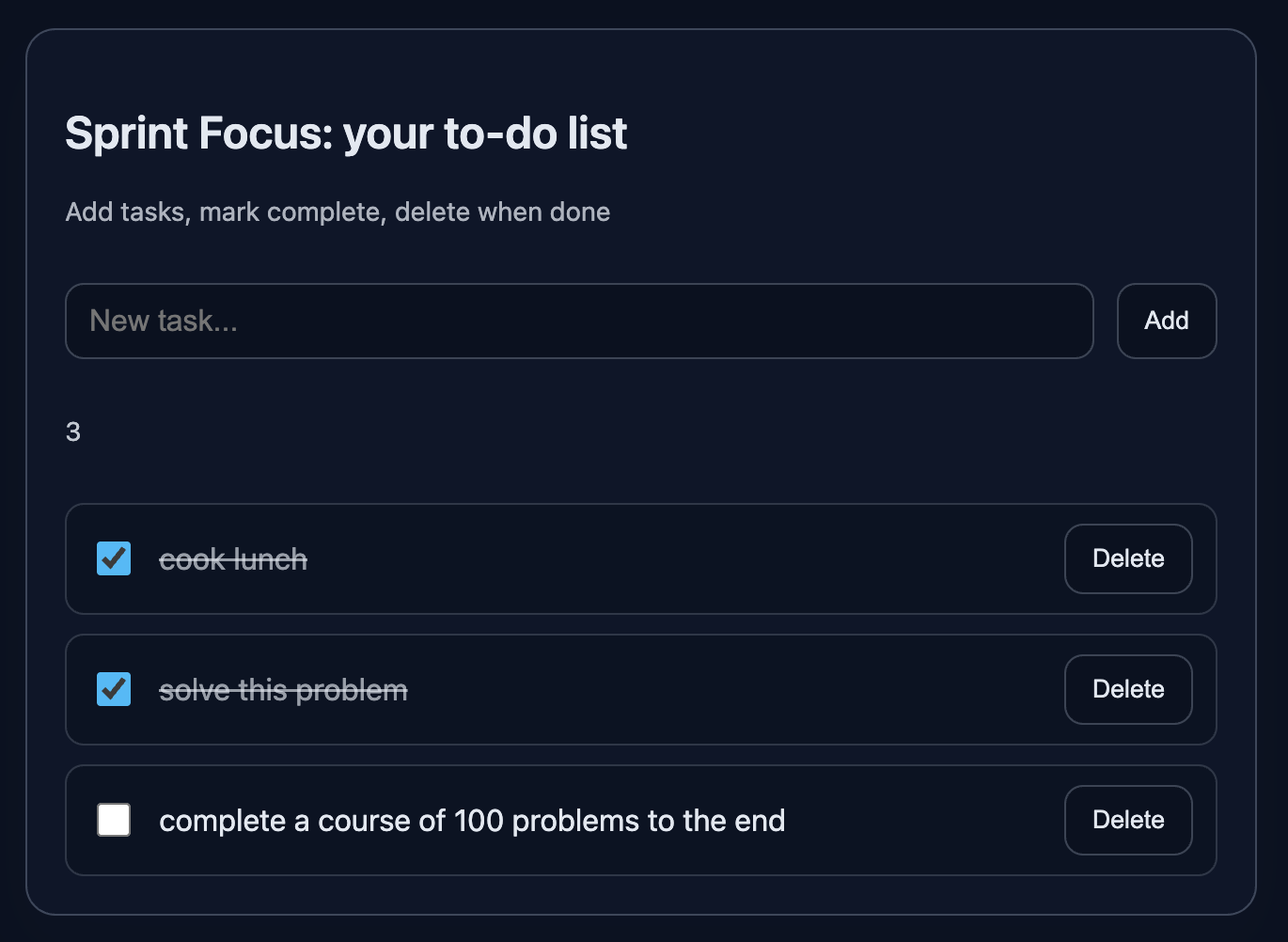
A card with an input, counter, list items, completion toggle, and delete button.
Preview:
💡 Hint
- State:
const [todos, setTodos] = useState([])andconst [newTitle, setNewTitle] = useState(''). - Add:
setTodos([...todos, { id: Date.now(), title: trimmed, done: false }]). - Toggle:
setTodos(todos.map(t => t.id === id ? { ...t, done: !t.done } : t)). - Delete:
setTodos(todos.filter(t => t.id !== id)). - Avoid empty tasks: use
trim()and ignore empty input.
👀 Solution
import React, { useState } from 'react';
import './styles.css';

export function TodoList() {
  const [todos, setTodos] = useState([]);
  const [newTitle, setNewTitle] = useState('');

  function handleAdd() {
    const title = newTitle.trim();
    if (!title) return;
    setTodos([...todos, { id: Date.now(), title, done: false }]);
    setNewTitle('');
  }

  function handleToggle(id) {
    setTodos(todos.map(t => t.id === id ? { ...t, done: !t.done } : t));
  }

  function handleDelete(id) {
    setTodos(todos.filter(t => t.id !== id));
  }

  return (
    <article className="card" data-testid="todo-card">
      <header>
        <h2 className="title">Sprint Focus: your to-do list</h2>
        <p className="subtitle">Add tasks, mark complete, delete when done</p>
      </header>

      <div className="row">
        <input
          className="input"
          type="text"
          placeholder="New task..."
          value={newTitle}
          onChange={e => setNewTitle(e.target.value)}
          aria-label="todo-input"
        />
        <button className="button" onClick={handleAdd}>Add</button>
      </div>

      <p className="counter" aria-label="counter">{todos.length}</p>

      <div className="list" data-testid="todo-list">
        {todos.length === 0 ? (
          <p className="empty">No tasks yet — add your first</p>
        ) : (
          todos.map((t) => (
            <div key={t.id} className={`item ${t.done ? 'done' : ''}`}>
              <input
                className="checkbox"
                type="checkbox"
                checked={t.done}
                onChange={() => handleToggle(t.id)}
                aria-label={`toggle-${t.title}`}
              />
              <span className="title-inline">{t.title}</span>
              <button className="button" onClick={() => handleDelete(t.id)}>Delete</button>
            </div>
          ))
        )}
      </div>
    </article>
  );
}

export default function App() {
  return (
    <main className="challenge-container">
      <section>
        <TodoList />
      </section>
    </main>
  );
}React: Todo List — add, delete, complete
Build a basic to-do: add tasks to state, mark them complete, and delete tasks you no longer need.
Product focus. Task control is core to digital products. Practice stateful lists.
What To Do
- Create state for tasks:
[{ id, title, done }]. - Make the input controlled and add tasks on button press.
- Toggle completion via checkbox.
- Delete tasks via a button.
Final View
A card with an input, counter, list items, completion toggle, and delete button.
Preview:
💡 Hint
- State:
const [todos, setTodos] = useState([])andconst [newTitle, setNewTitle] = useState(''). - Add:
setTodos([...todos, { id: Date.now(), title: trimmed, done: false }]). - Toggle:
setTodos(todos.map(t => t.id === id ? { ...t, done: !t.done } : t)). - Delete:
setTodos(todos.filter(t => t.id !== id)). - Avoid empty tasks: use
trim()and ignore empty input.
👀 Solution
import React, { useState } from 'react';
import './styles.css';

export function TodoList() {
  const [todos, setTodos] = useState([]);
  const [newTitle, setNewTitle] = useState('');

  function handleAdd() {
    const title = newTitle.trim();
    if (!title) return;
    setTodos([...todos, { id: Date.now(), title, done: false }]);
    setNewTitle('');
  }

  function handleToggle(id) {
    setTodos(todos.map(t => t.id === id ? { ...t, done: !t.done } : t));
  }

  function handleDelete(id) {
    setTodos(todos.filter(t => t.id !== id));
  }

  return (
    <article className="card" data-testid="todo-card">
      <header>
        <h2 className="title">Sprint Focus: your to-do list</h2>
        <p className="subtitle">Add tasks, mark complete, delete when done</p>
      </header>

      <div className="row">
        <input
          className="input"
          type="text"
          placeholder="New task..."
          value={newTitle}
          onChange={e => setNewTitle(e.target.value)}
          aria-label="todo-input"
        />
        <button className="button" onClick={handleAdd}>Add</button>
      </div>

      <p className="counter" aria-label="counter">{todos.length}</p>

      <div className="list" data-testid="todo-list">
        {todos.length === 0 ? (
          <p className="empty">No tasks yet — add your first</p>
        ) : (
          todos.map((t) => (
            <div key={t.id} className={`item ${t.done ? 'done' : ''}`}>
              <input
                className="checkbox"
                type="checkbox"
                checked={t.done}
                onChange={() => handleToggle(t.id)}
                aria-label={`toggle-${t.title}`}
              />
              <span className="title-inline">{t.title}</span>
              <button className="button" onClick={() => handleDelete(t.id)}>Delete</button>
            </div>
          ))
        )}
      </div>
    </article>
  );
}

export default function App() {
  return (
    <main className="challenge-container">
      <section>
        <TodoList />
      </section>
    </main>
  );
}🧑💻 It's not a bug! It's a feature!
The code editor is intentionally hidden on mobile.
Believe me, it's for the best: I am protecting you from the temptation to code in less-than-ideal conditions. A small screen and a virtual keyboard are not the best tools for a programmer.
📖 Now: Study the task, think through the solution. Act like a strategist.
💻 Later: Sit down at your computer, open the site, and implement all your ideas comfortably. Act like a code-jedi!